
Unhide your folders and files hidden by the virus.
Advertisements
Now you see your files, now you don’t?
You installed or updated your antivirus, and your files just disappeared. Oh my goodness!
You are now in a panic. It seems that you lost all your precious data, your report (with deadlines), presentations, list of clients and more. You blamed your antivirus and yourself. What can you do?
First, don’t blame yourself, it is the right thing you should do. Having an antivirus and keep it updated is wise. It just happen you installed or updated it after the virus is already infecting your files.
Second, don’t blame your antivirus, it isn’t the reason, why your files are gone. It is the virus that hides it, and replaced it (to make it unnoticed the virus resembles your files). However, your antivirus is smart enough, detects the virus and deleted it.
How to recover your files?
Recommended reading:
Advertisements
Now that is your problem, but I will help you find a solution.
Step 1
- Go to my documents, organize, folder and search options and click the view tab.
- Under the Hidden files and folders, select the show hidden files, folders and drives.
- Uncheck the “hide extensions for known files” and “hide protected operating system files”.
Now you can see your hidden files in semi transparent and as you can see the extensions of your files are now visible .docx, .pptx, .txt and so on.
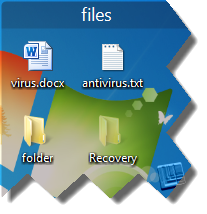
- Right click your hidden folder (it’s semi transparent) click properties.
- Under the general tab, uncheck the hidden. In some cases this solves the hidden files problem but most of the time this doesn’t help. If you solved your problem, good for you, if not don’t worry let’s proceed to the next step.
Step 2
Advertisements
Just copy the code below (start from the bottom to completely copy the code) and paste it in notepad, save it as folder.vbs (change the .txt extension into .vbs) . Then paste it inside your HDD, SD card or USB drive from where your files were hidden and run it.
Don’t forget to change the “d:” in cDrive with your current drive letter.
‘ Change d: to the drive letter where you want the change will happen.
cDrive = “d:”Set FSO = CreateObject(“Scripting.FileSystemObject”)
ShowSubfolders FSO.GetFolder(cDrive)
WScript.Echo “Done with fix.”Sub ShowSubFolders(Folder)
str = “”
For Each Subfolder in Folder.SubFolders
str = str & ” ” & Subfolder.Path
subFolder.Attributes = 0
ShowSubFolders Subfolder
Next
End Sub
You should see all your folders now. How about my image of precious moments, word documents and other files? Please take note that the above code is created to unhide folders alone the files outside your folders isn’t included. To unhide your files outside your folders let’s jump to the next step.
Step 3
- Click start, run, type cmd.
- Type your drive letter with colon Ex. e:, press enter.
- Then type
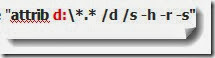 (without quotes)
Congratulations, you just retrieve your files and folders. If you have any better idea on how to unhide files and folders hidden by virus. Please share it with is, by commenting below. It will be highly appreciated.


April 24, 2017 at 4:56 pm
You saved my A$$….Thank you very much….!! 🙂
Your welcome 🙂
at command promt
Once you’re on the correct drive, type:
“attrib *.* -h -s /s /d” (without quotes) and hit Enter.
be careful with spaces
Hello Mikis,
Thank you for your input.
how to run the folder.vbs ??? it’s just FIL with open is only option
other thing the shortcut is not in removable disk it’s on hard drive D
please help me.
Wow thank you so much! YOU ARE LITERALLY A LIFE SAVER ALL MY REQUIREMENTS IN SCHOOL WERE THERE AND ALL THE MEMORIES OHMYGOD THANK U SO MUCH U DONT EVEN KNOW ♥♥♥
Hi Maria, am glad that you were able to recover all your files infected by virus using this guide. You are very much welcome 🙂
thank you sir 🙂 just asking now i can see my real folder? can i delete already the shortcut file inside my drive?
Sure, you can delete the shortcuts remnants from your Hard drive or Flash drive.
Thank you!! IT WORKED!!!